TeacherGen@I v1.6 CAT 531 Student Guide
Use the PIN provided by your instructor. Your course account has already been registered in the system, and the PIN identifies your activity record.
Guide link: https://educatian.github.io/teacher-geni-cat531/
App package: download the version for your device, then use the PIN provided in your course space or by your instructor.
How To Start
- Open TeacherGen@I v1.6.
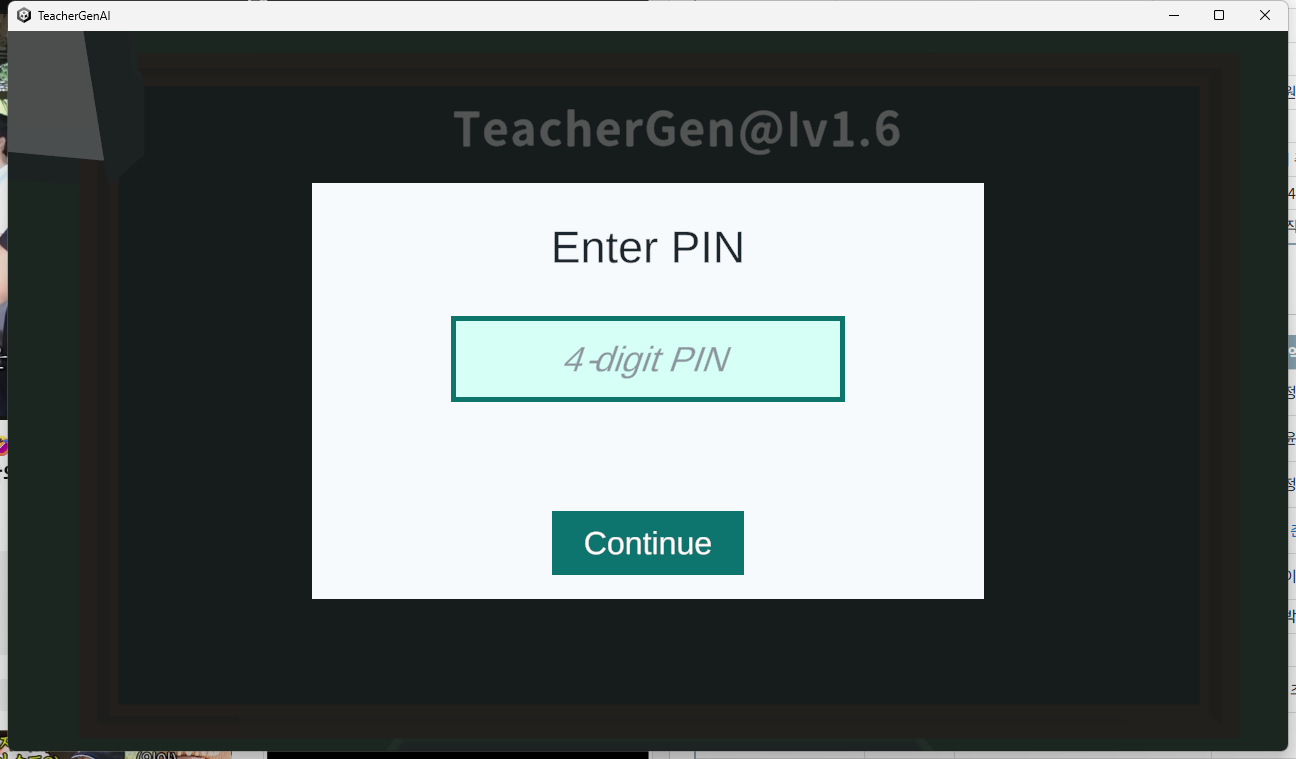
- Enter the 4-digit PIN provided in your course space or by your instructor.
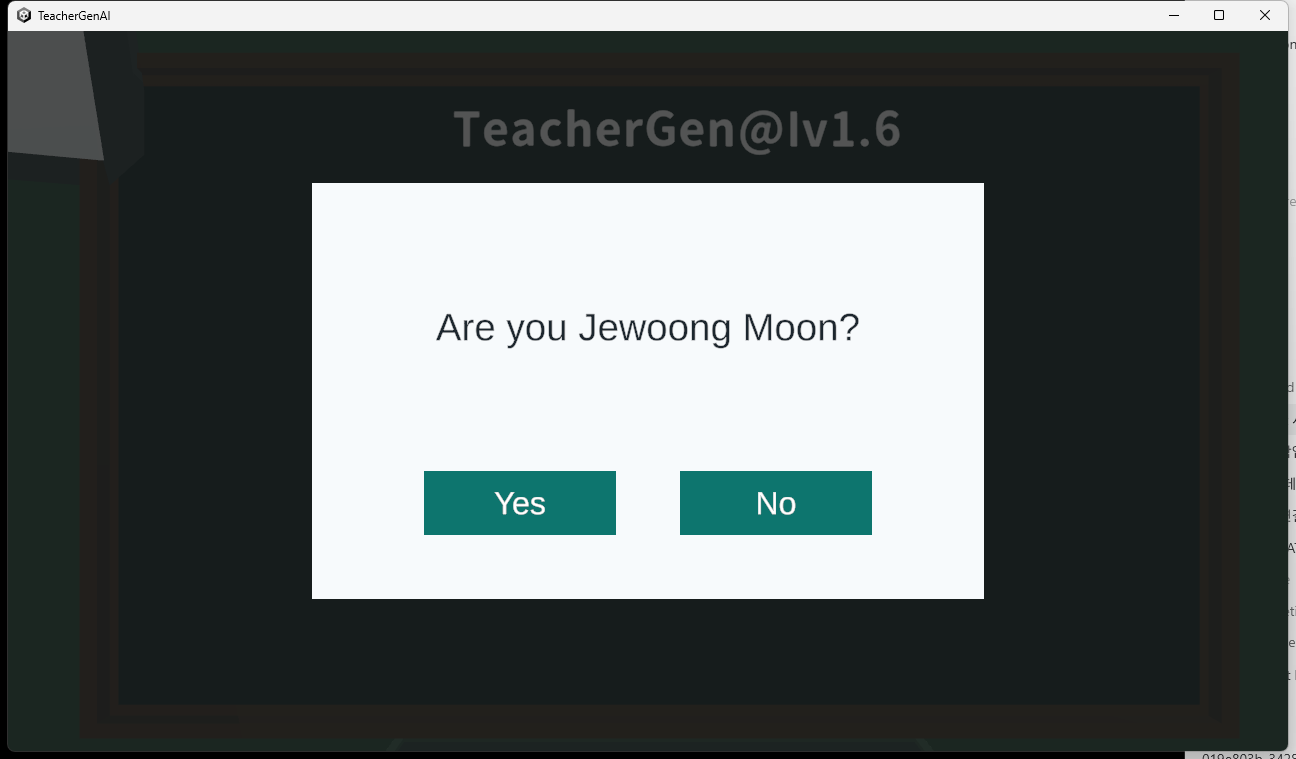
- When the app asks if the matched name is yours, choose Yes.
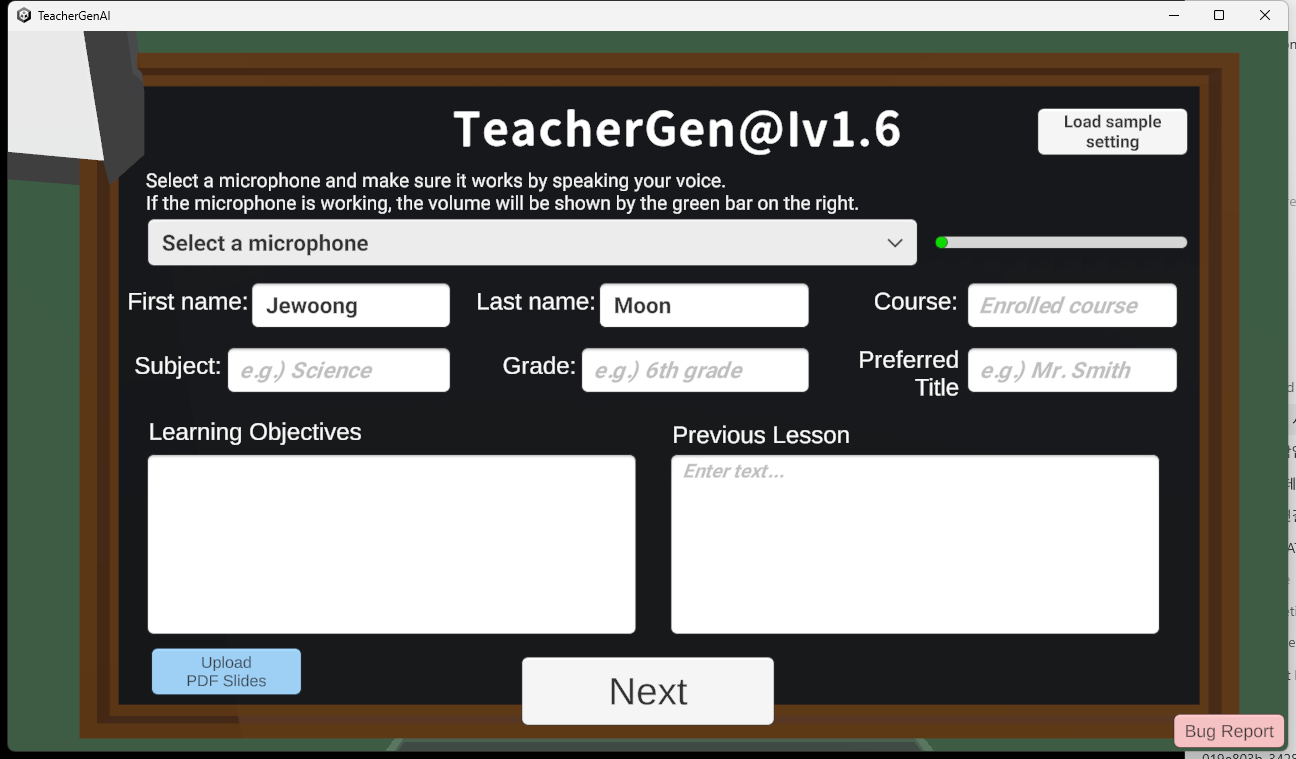
- On the setup screen, check your first and last name.
- Add the course, subject, grade level, preferred teacher title, learning objectives, and previous lesson information as directed in class.
- If your instructor asks you to use slides, upload the PDF slides before selecting Next.
- Continue into the simulation and follow the activity directions.
Simulation Activity Architecture
The activity is organized as a short cycle: identify your account, set the teaching context, run the classroom simulation, and use the experience for reflection or discussion.
| Layer | What It Does | What Students Provide |
|---|---|---|
| Account access | Connects the activity to the correct course account. | Your instructor-provided PIN. |
| Identity check | Confirms that the PIN matched the correct name before the activity begins. | Select Yes only when the displayed name is yours. |
| Teaching setup | Creates the classroom context for the simulation. | Course, subject, grade level, preferred teacher title, learning objectives, and previous lesson information. |
| Instructional materials | Lets the simulation use course-specific resources when assigned. | PDF slides, if your instructor asks you to upload them. |
| Simulation | Runs the classroom interaction so you can practice teaching decisions and responses. | Your spoken or typed interaction during the activity. |
| Reflection | Supports post-activity discussion, debriefing, or written reflection. | Notes about what happened, what you tried, and what you would revise. |
Before You Begin
- Use a device with a working microphone if voice interaction is part of the activity.
- Keep your PIN private and use only the PIN assigned to you.
- Prepare any lesson topic, objective, or slide deck requested by your instructor.
- If the displayed name is not yours, choose No and ask your instructor for help.
What You Should See
After your PIN is accepted, the app will show your name for confirmation. Choose Yes if it is correct.