Operator Guide

Build Qualtrics surveys by talking to Claude Code

Eight prompts you can paste into Claude Code (or Codex CLI), in order, to go from token to live responses — without writing code yourself. Closes with one applied case: a TeachPlay Pre/Post evaluation survey.

You'll need: a Qualtrics API token + your datacenter ID  ·  Tooling: Claude Code or Codex CLI  ·  Time: ~30 min the first run, ~5 min for each new survey afterward
Jewoong Moon, Ph.D.  ·  Department of Educational Leadership, Policy, and Technology Studies, College of Education, The University of Alabama  ·  jmoon19@ua.edu
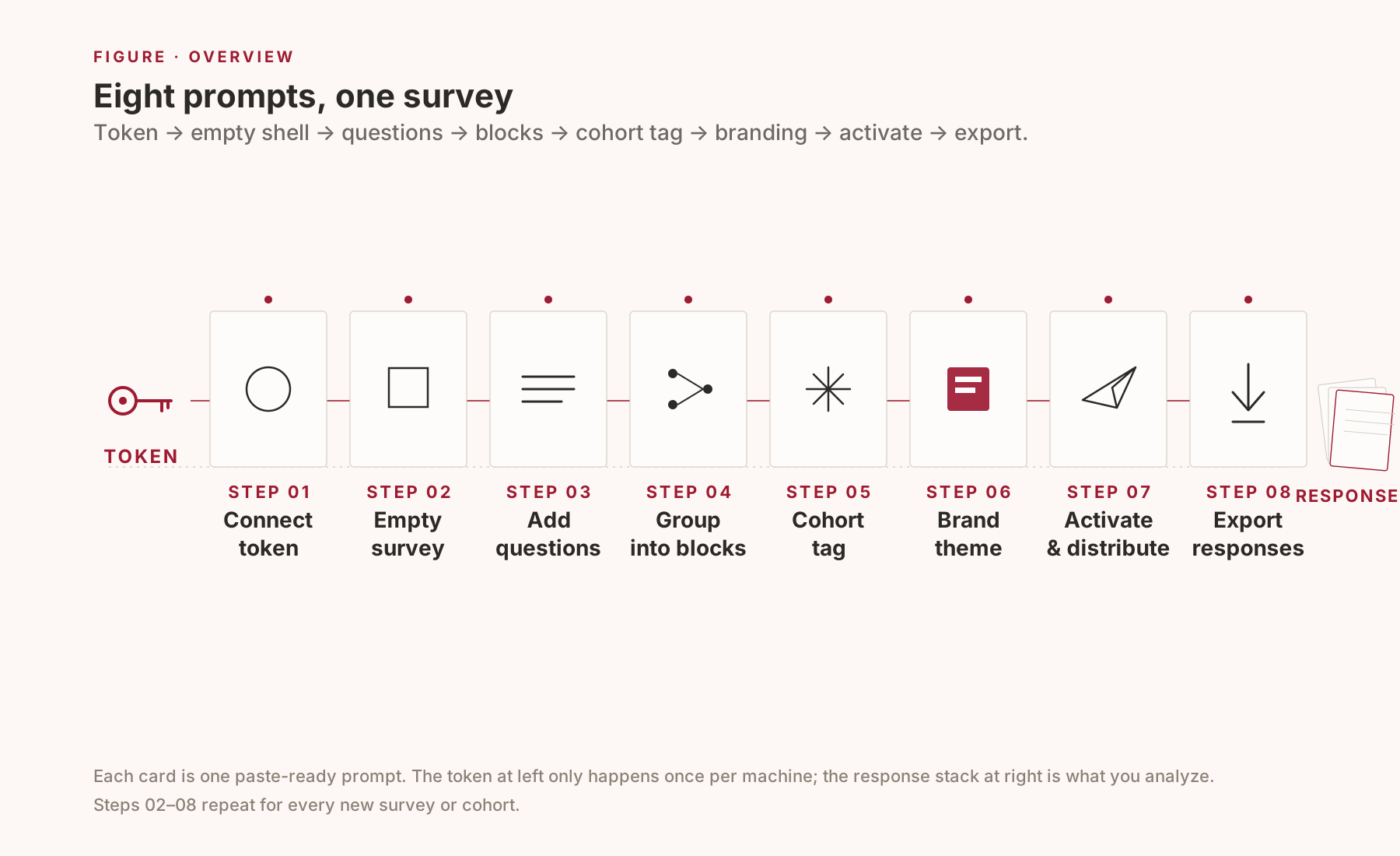
Eight-step workflow with labeled cards: 01 Connect token, 02 Empty survey, 03 Add questions, 04 Group into blocks, 05 Cohort tag, 06 Brand theme, 07 Activate & distribute, 08 Export responses. A key icon at the far left represents the API token (one-time setup); a paper stack at the far right represents exported responses.
Each card is one paste-ready prompt; everything between the cards is automatic. The token (left) only happens once per machine; the response stack (right) is what you analyze. Steps 02–08 repeat for every new survey or cohort.
Note · Read before Step 01

This workflow is appropriate when all of the following hold:

  • You (or a research team you belong to) have legitimate access to the Qualtrics account in question.
  • You are using the API token to build surveys, download responses, organize metadata, or write automation scripts — not to circumvent access controls.
  • Claude Code is being used to write code or run API-call scripts locally on your own machine.
  • Any response data is anonymized / de-identified and handled within the scope of your IRB approval (or equivalent ethics oversight).

Hard rules (paste these to Claude Code at the start of every session):

You are helping me automate Qualtrics work. Follow these rules strictly: 1. NEVER print, echo, log, or display the Qualtrics API token in chat, terminal output, comments, or commit messages. Refer to it only as $QUALTRICS_API_TOKEN. 2. NEVER hardcode the token (or datacenter ID) into source files. Read it from a local .env file or an environment variable. 3. Add .env (and any token files) to .gitignore before writing any code that reads them. If .gitignore is missing or doesn't list .env, fix that first. 4. Do NOT send raw response data, participant text, or any PII back to me in this chat. Process responses locally and only summarize aggregate, de-identified results. 5. If you need example data to develop or debug, generate de-identified synthetic samples — do not use real participant rows.

Part 1

Eight prompts to follow

For each step you'll see the prompt to paste (red box), what Claude Code does in reply (blue box), and what you'll see as a result (green box). Top to bottom, copy and paste.

Step 01 Connect the token once per machine

Get your API token out of Qualtrics, save it to a local text file, then point Claude Code at the file. Don't paste the token into chat.

How to get the token. Log in to Qualtrics → Account Settings → Qualtrics IDs → in the API section, copy the Token (40 chars) and your Datacenter ID (e.g. pdx1, iad1, fra1). Save them into any local .txt file.
PYou → Claude Code
My Qualtrics API token is saved at [your file path]. Verify the credentials work by calling /whoami, confirm the datacenter, and remember the file location so I don't have to point at it again next session.
CClaude Code → You

I'll read the file, pull the 40-char token, and verify against the /whoami endpoint.

  • Read the token file → extract the token line
  • Call GET /API/v3/whoami with X-API-TOKEN
  • Confirm brand / username / datacenter
  • Save the file path to memory so future sessions skip this step
What you'll see
  • One-line confirmation: "Connected — brand your-brand, user you#your-brand, datacenter pdx1"
  • From the next step on, no more token prompts

Step 02 Make an empty survey a single shell

Start with a blank shell. You only need to give it a name. Crucially, it's created inactive — no responses can come in yet.

PYou → Claude Code
Create an empty survey called "My Project — Pre Survey". English, inactive (isActive=false). Tell me the SurveyID; don't add any questions yet.
CClaude Code → You

One POST /survey-definitions call.

  • Survey name: "My Project — Pre Survey"
  • Language: EN · Category: CORE
  • Created inactive by default
What you'll see
  • One line: SurveyID: SV_xxxxxxxxxxxxxxx
  • The empty shell appears in your Qualtrics UI → Projects tab right away
  • You'll keep using this ID for the rest of the steps

Step 03 Add questions in plain language just describe them

This is where it gets easy. You don't have to know which question type is which (MC vs SAVR vs Matrix). Just say what you want to measure and which scale — Claude Code maps that to the right Qualtrics payload.

PYou → Claude Code
Add 4 usability items to the survey, on a 5-point agree-Likert. - This system meets my requirements. - This system is easy to use. - Using this system is a frustrating experience. (reverse-coded) - I have to spend too much time correcting things. (reverse-coded) All required, with analysis tags USAB_1 through USAB_4.
CClaude Code → You

Four single-answer vertical-radio items, 5-point Strongly disagree → Strongly agree.

  • 4 items via POST /questions
  • DataExportTag: USAB_1, USAB_2, USAB_3, USAB_4 (these become your CSV column names)
  • ForceResponse: ON
  • All landed in the default block — we'll split into named blocks next step
What you'll see
  • Open the survey in Qualtrics UI: 4 items rendered with the 5-point scale
  • Click Preview to see the respondent's view
Other scales. Just say it in plain language: "as a single-line text entry", "as a Likert matrix (rows are statements, columns are 5 points)", "as multi-select checkboxes", "as a 0-10 slider". Matrix and Slider have fiddly payloads, so Claude Code may ask one clarifying question.

Step 04 Group into blocks section structure

Once you have more than a handful of items, split them into blocks (by construct or section). Better for analysis and better for the respondent.

PYou → Claude Code
Move those 4 items into a block called "Usability". Then add two new blocks: 1) "AI-use Self-Efficacy" — 4 items on a 5-point confidence scale (e.g. "I can use ChatGPT/Claude to draft instructional content for class" — please draft 4 good items) 2) "Teaching Efficacy Contagion" — 3 items, 5-point confidence (tone: "my own students will engage well with what I designed") Tags AISE_1–4 and TSE_1–3.
CClaude Code → You

Three blocks total, 7 new items added.

  • Default block renamed to "1_Usability" (USAB_1–4)
  • New block "2_AI-use Self-Efficacy" + AISE_1–4 (Bandura-style task-specific items)
  • New block "3_Teaching Efficacy Contagion" + TSE_1–3
  • Total 11 items. Estimated completion ~3 min
What you'll see
  • The Qualtrics UI sidebar shows three blocks in a tree
  • Each block expands to show only its own items
  • Preview pages now break automatically between blocks

Step 05 Cohort tag one URL, many groups

When the same survey goes to multiple groups (spring vs. summer cohort, school A vs. school B), you want each response to remember which group it came from. Add ?cohort=… to the link and the value rides into your data.

PYou → Claude Code
Make the survey capture a URL parameter called cohort. When the link is shared as ?cohort=2026-spring, that value should appear as a column in the exported responses.
CClaude Code → You

Added an EmbeddedData declaration to the very top of the survey flow.

  • The URL value becomes a cohort column in the response CSV
  • Invisible to the respondent — pure metadata
  • To target multiple groups, share the same survey with different cohort values appended
What you'll see
  • Qualtrics UI → Survey Flow tab shows "Set Embedded Data: cohort" at the top
  • When you export later (Step 8), cohort appears alongside your item columns

Step 06 Brand the survey institution color & type

Default Qualtrics is generic gray-blue. Branding to your institution's color noticeably lifts perceived legitimacy (and response rates). You only need to give Claude Code your color codes and header copy.

PYou → Claude Code
Apply institutional theming to the survey. - Accent color: #9E1B32 (UA Crimson) - Typography: Inter - Header: 4px Crimson left-border + "MY PROJECT — University of Alabama, College of Education" - Footer: "Anonymous research instrument · No PII · UA IRB approved" - Show a verbose progress bar; enable the back button. Don't change any other options.
CClaude Code → You

Pulled the existing options first, merged in the overrides, and PUT them back (idempotent).

  • Buttons / progress bar / hover state → Crimson
  • Body font → Inter (with system fallbacks)
  • Header / Footer HTML applied
  • SurveyProtection, PartialData, and other required keys preserved
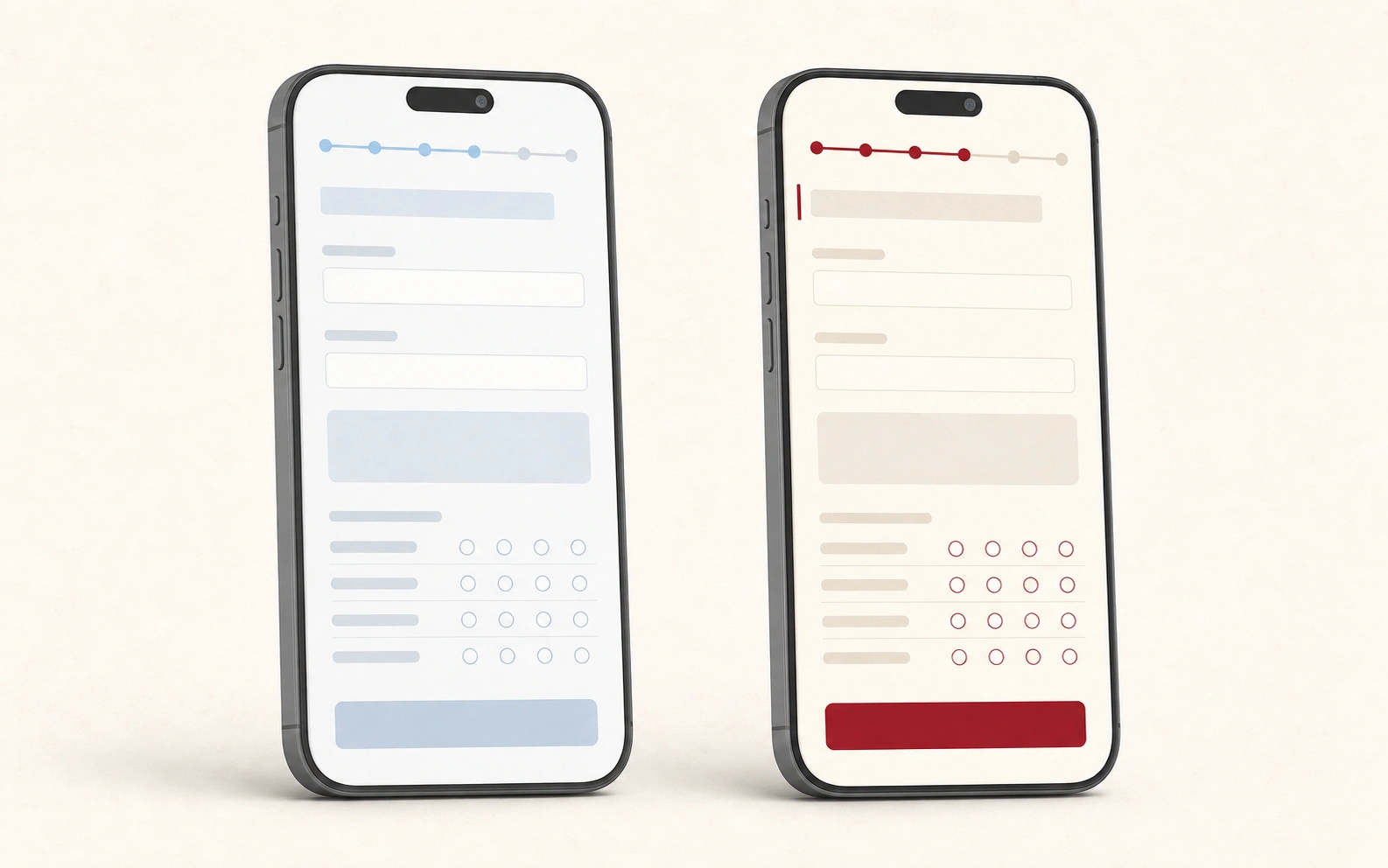
Two phone mockups: left shows a generic gray-and-blue Qualtrics form, right shows the same form rebranded in cream and crimson with header accent and themed progress bar
Same survey, before and after theming. Same questions and the same data — just re-themed via a single options PUT, not by re-creating anything.
What you'll see
  • Click Preview → the right-hand mockup style renders
  • Mobile responses keep the theme (responsive by default)
  • Browser tab title becomes "MY PROJECT — Pre Survey"

Step 07 Activate & distribute go live

Everything so far has been inactive. Activate only after IRB / your own review is complete. Activation is split into its own explicit prompt on purpose, so you don't accidentally start collecting data.

PYou → Claude Code
Activate the survey and create one anonymous distribution link. Expiration: 2026-12-31 23:59:59. Tell me the link, and remind me how to append ?cohort= for cohort tagging.
CClaude Code → You

Two calls:

  • PUT /surveys/{id}isActive: true
  • POST /distributions → anonymous link with the expiration you set
What you'll see
  • One anonymous link: https://<dc>.qualtrics.com/jfe/form/SV_xxx
  • For per-cohort sends, append ?cohort=2026-spring (or your tag) to the link
  • As responses arrive, watch the live count under Qualtrics UI → Data & Analysis

Step 08 Export responses CSV for analysis

Once enough responses are in, pull the CSV to your machine. Claude Code handles the async dance (request → poll → download) for you.

PYou → Claude Code
Export all responses so far as CSV and unzip them into [your folder path]. Keep my analysis tags (USAB_1, AISE_1, TSE_1, etc.) as the column names.
CClaude Code → You

Async export → poll until complete → download zip → extract.

  • POST /export-responses → returns a progressId
  • Poll status every couple seconds until complete
  • GET /export-responses/{fileId}/file → zip → unzip
  • Final CSV columns include cohort, USAB_1–4, AISE_1–4, TSE_1–3
What you'll see
  • One file in your folder: SurveyName_responses.csv
  • One row per respondent, columns named with your analysis tags
  • Open in R / Python / SPSS / Excel and start analyzing
That's the full cycle. When the next cohort arrives, just change the ?cohort= tag in your link (Step 7), let responses accumulate, and re-run Step 8. To build a brand-new survey, start again from Step 2 — you don't need to redo Step 1 (the token is remembered).

Part 2 · Case

TeachPlay Pre/Post evaluation survey

The eight steps applied to a real project: a 12-session AI-enhanced educational game design microcredential at the University of Alabama. Pre 20 items + Post 22 items, built in a single combined prompt.

Case 01 One combined prompt when the design is settled

If your construct selection and item counts are already decided, you can fold Steps 02–06 into one message. Useful for handoff between cohorts or project replication.

PYou → Claude Code
Build the TeachPlay Pre and Post evaluation surveys (AI-enhanced educational game-design microcredential). [POST · 22 items] inactive, perception × efficacy - 3 tag items: pseudonymous matching code / role / actual hours (bucketed) - Usability — UMUX, 4 items, 5-point agree - AI-use Self-Efficacy — 4 items, 5-point confidence (same wording as the Pre block so paired d_z is interpretable) - Credential Value — 4 items, single composite (signal/social/economic/realized) - Designer Identity — 4 items (same wording as Pre) - Teaching Efficacy Contagion — 3 items, 5-point confidence [PRE · 20 items] inactive - 1 matching code - 7 anonymous demographics (role, grade level, gender, subject, years, institution + opt-in race) No PII; pair Pre and Post via a self-generated 4-character code. - AI-use Self-Efficacy baseline — 4 items (matches Post wording) - Designer Identity baseline — 4 items (matches Post) - Credential Expectation — 4 items (symmetric to Post Credential Value, future tense) Use validated short forms only; every construct ≥ 3 items so alpha is estimable. Capture a cohort URL parameter and apply UA Crimson theming to both. Do not activate — IRB review pending.
CClaude Code → You

Two surveys created in sequence — about 60 API calls total (~30 per survey).

  • Wrote a small helper module + an instruments file first, so wording lives in one place
  • Pre: empty shell → demographics → AI-SE baseline → Designer Identity → Credential Expectation
  • Post: empty shell → tag → UMUX → AI-SE → Credential Value → Designer Identity → TSE Contagion
  • Both surveys carry cohort EmbeddedData and the UA Crimson theme
  • Both kept isActive=false as requested
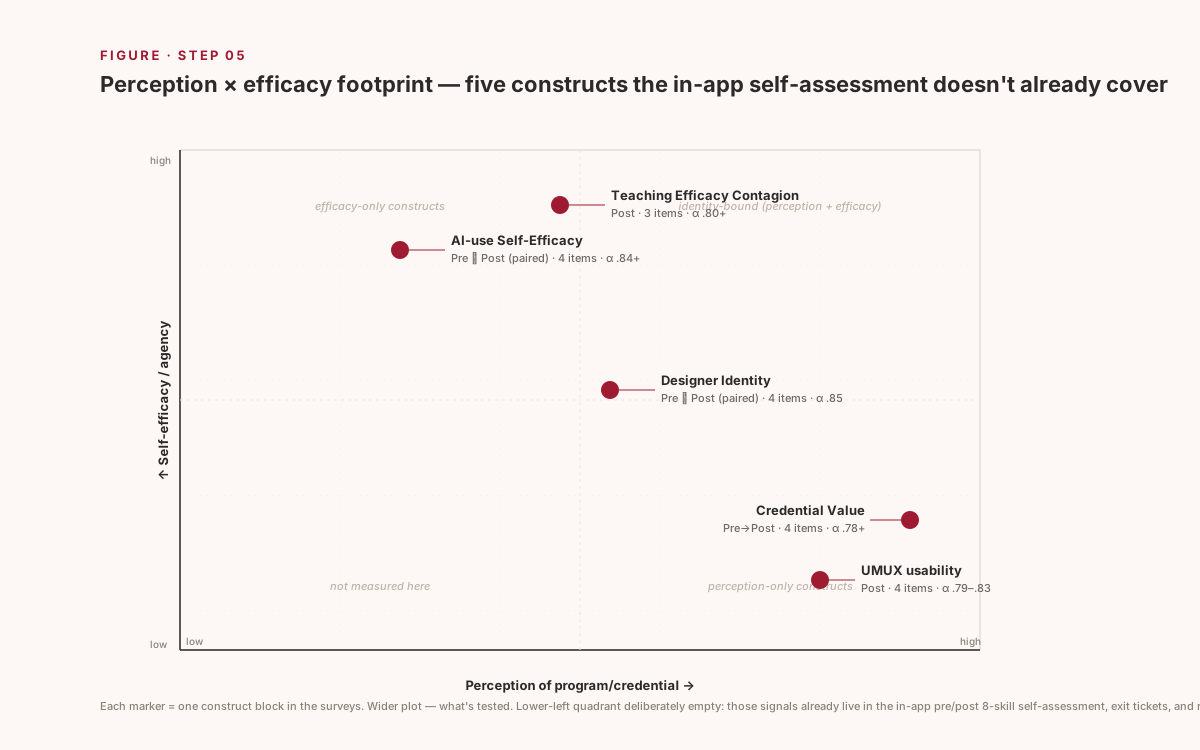
Perception × efficacy quadrant with five labeled construct markers — UMUX usability, AI-use Self-Efficacy, Credential Value, Designer Identity, Teaching Efficacy Contagion — each with item count, alpha, and pairing status
Five constructs land where the in-app self-assessment doesn't already cover. The lower-left quadrant is deliberately empty — those signals already live in the in-app stream.
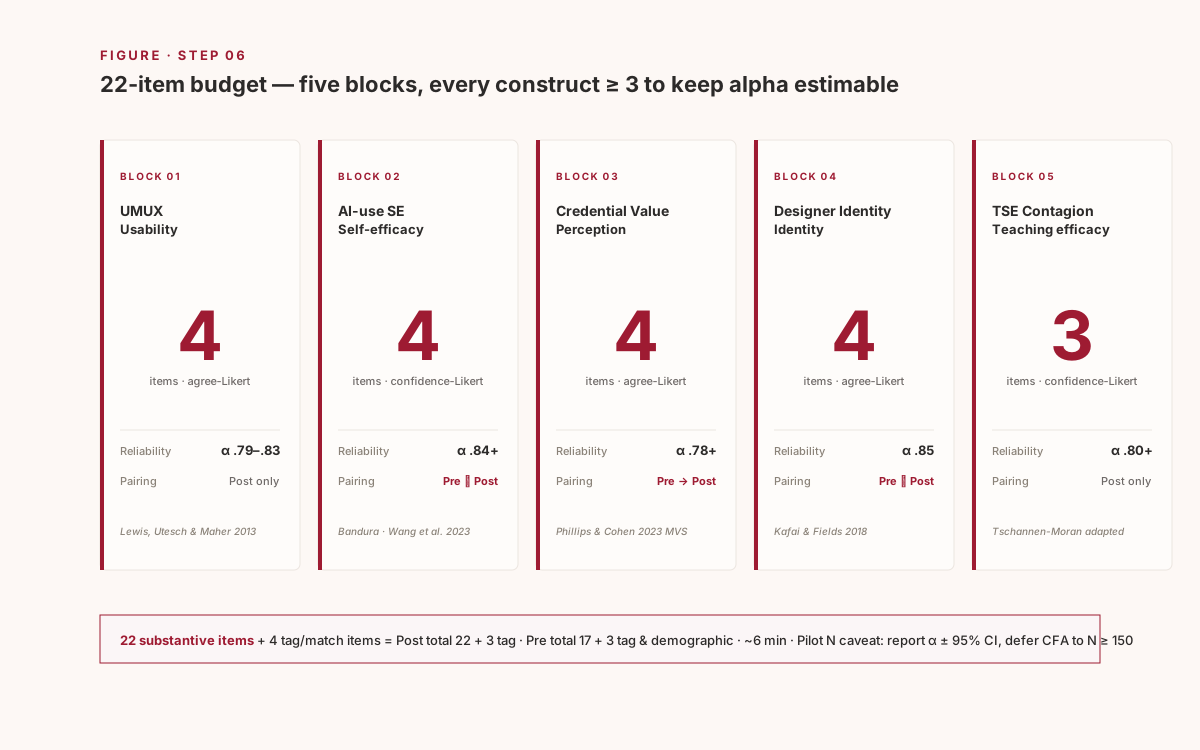
Five labeled block cards: BLOCK 01 UMUX (4 items), 02 AI-use SE (4), 03 Credential Value (4), 04 Designer Identity (4), 05 TSE Contagion (3); each card lists the construct, item count, reported alpha, pairing status, and source citation
Five blocks, 22 substantive items. Every construct has ≥ 3 items so reliability is estimable. The Pre/Post-paired blocks share wording verbatim, so paired d_z is interpretable.
What you'll see

Two themed, paired-ready surveys sitting inactive in UA Qualtrics, waiting on IRB sign-off.

  • Pre — SV_9QtpyWbqTypaFls · 20 items · ~5 min
  • Post — SV_39sdRK7OVJvSiPk · 22 items · ~6 min
  • Both: UA Crimson theme + cohort URL param + anonymous matching code pairing
Next actionOwnerWhen
UI preview (desktop + mobile)PINow
File IRB R4 amendment (Credential Value · Designer Identity · TSE Contagion)PIBefore activation
Run Step 7 (activate + distribute)PIAfter R4 approval
Cohort 1 close → Step 8 export → α + paired d_zRA + PI+30 days
Cohort 2-3 pooled (N ≥ 150) → CFA on Credential Value 3-factorPIYear 2
The point. The combined prompt above only works because Steps 01–08 are already standardized. Once your design is settled, the same one-message pattern will set up surveys for any other project — ETHOBOT, ALGET, AO TeacherSim — just by swapping out constructs, scale lengths, anonymity policy, and accent color.